UART
The phyFLEX-AM62Px provides access to up to 8 UART interfaces that can be used for configuration and data exchange with external peripheral devices.
By default, the phyFLEX-Libra AM62Px is configured to use UART1 for a Linux console input and output. The UART1 signal is available through the USB-C connector X14 via a UART to USB bridge. PHYTEC recommends allocating UART1 for console access on custom designs. You can see the UART interfaces available on the phyFLEX-Libra AM62Px in the images and tables below.
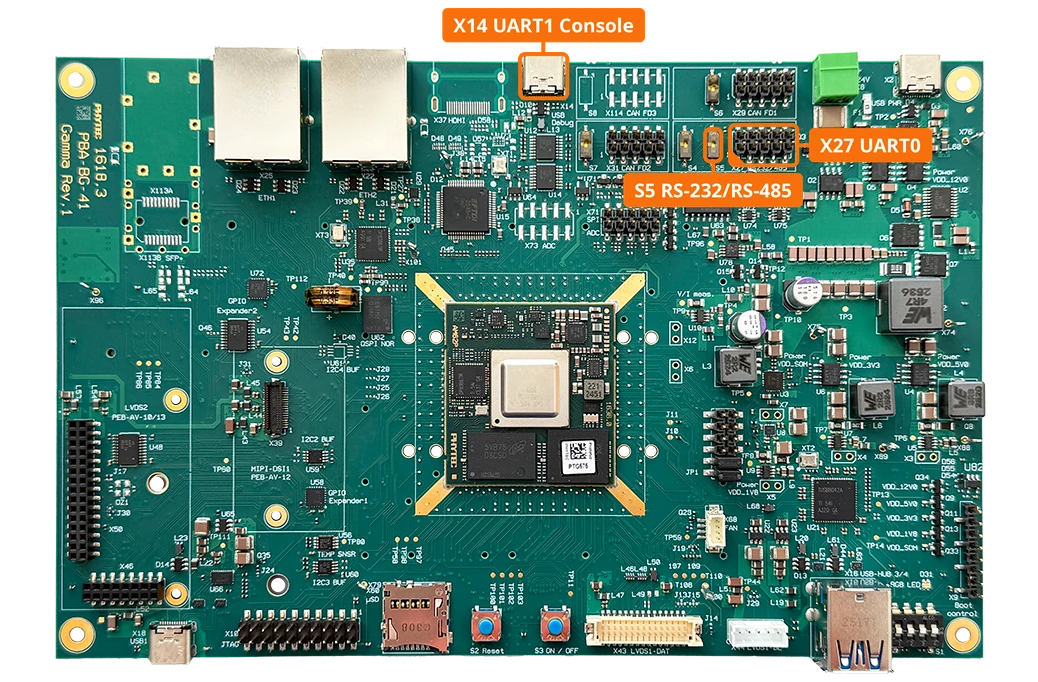
The UART channels correspond to the following connectors and system paths.
UART |
Connector |
Character Device File |
Status |
|---|---|---|---|
UART1 |
X14 (USB-C, FT4232H USB to UART bridge) |
/dev/ttyS2 |
Default Linux Console |
UART0 |
X27 (RS-232/RS-485 2x5 Header) |
/dev/ttyS3 |
Requirements
DB9 Male 2x5 to RS232 Female Cable (included in the development kit)
USB to RS-232 serial adapter
Hardware Setup
Power off and remove the power supply from the phyFLEX-Libra AM62Px.
am62pxx-phyflex-libra-rdk-1:~# poweroff
Set DIP switch S5 to OFF to select RS-232 (ON selects RS-485).
Connect the DB9 Male 2x5 to RS232 Female Cable (included in the development kit) to the X27 connector (red line indicates Pin 1).
Connect a USB to RS-232 serial adapter to the female end of the DB9 cable. Do not connect the cable to your host system yet.
Signal |
Pin |
|---|---|
RS-232 RXD |
3 |
RS-232 RTS |
4 |
RS-232 TXD |
5 |
RS-232 CTS |
6 |
RS-485 A |
7 |
RS-485 B |
8 |
GND |
9, 10 |
Power the phyFLEX-Libra AM62Px back on.
Connect the USB to RS-232 serial adapter to your host system. Inspect the dmesg output on your host system to find its device file. The USB debug port X14 already provides /dev/ttyUSB0 to /dev/ttyUSB3, so the adapter will very likely be /dev/ttyUSB4. The host commands below use /dev/ttyUSB4.
Setting the Baud Rate
Before using the UART interface, you need to configure the baud rate. The following command sets the baud rate to 115200 bps for the UART interface:
am62pxx-phyflex-libra-rdk-1:~# stty -F /dev/ttyS3 115200
You can verify the current settings using:
am62pxx-phyflex-libra-rdk-1:~# stty -F /dev/ttyS3 -a
Sending Messages
To send data through the UART interface, you can use the echo command to write to the device:
am62pxx-phyflex-libra-rdk-1:~# echo "Hello World" > /dev/ttyS3
For continuous transmission, you can use a loop:
am62pxx-phyflex-libra-rdk-1:~# while true; do echo "Test Message" > /dev/ttyS3; sleep 1; done
Receiving Messages
To read incoming data from the UART interface, set the baud rate of the serial adapter and use the cat command:
sh-host:~$ stty -F /dev/ttyUSB4 115200 raw -echo
sh-host:~$ cat /dev/ttyUSB4
This will display any incoming messages in real-time. Press Ctrl+C to stop reading.
For debugging purposes, you can also use minicom. Install it using:
sh-host:~$ sudo apt update
sh-host:~$ sudo apt install minicom
Start minicom:
sh-host:~$ minicom -D /dev/ttyUSB4 -b 115200
Booting via UART
See chapter UART on how to boot from UART.