USB/DFU
AM67x USB peripheral boot (also called device boot) mode receives a second bootloader image from a USB host using the Device Firmware Update (DFU) specification defined by USB-DFU.
This section demonstrates how to use DFU to boot phyCORE-AM67x to a U-Boot prompt using a Linux Ubuntu PC.
Requirements
Hardware
Ubuntu 24.04 LTS or newer
If using a virtual machine, VMWare Workstation, VMWare Player, and VirtualBox are all viable solutions.
USB-C to USB-A cable
Software
Prepare the following U-Boot images by building the BSP (Build the BSP) or downloading the pre-built (Pre-Built Binaries) image files. These images will be used for downloading to and booting on the phyCORE-AM67x via USB/DFU:
* tiboot3.bin-usbdfu
* tispl.bin
* u-boot.img
Note
tiboot3.bin-usbdfu is built along side tiboot3.bin and is used for USB-DFU boot on the phyCORE-AM67x.
Install & Configure Snagboot
Install python3, pip, and swig:
sh-host:~$ sudo apt update && sudo apt install python3 python3-pip python3-venv swig
Now we can create and source our python virtual environment in the same folder that we have our U-Boot images.
sh-host:~$ python3 -m venv myenv
sh-host:~$ source myenv/bin/activate
Install snagboot in our venv using pip
sh-host:~$ pip install snagboot
Export the PHYTEC template
sh-host:~$ snagrecover -t am62x-phyboard-lyra > am62x-phyboard-lyra.yaml
We can cat the template to verify it is exported correctly:
sh-host:~$ cat am62x-phyboard-lyra.yaml
tiboot3:
  path: tiboot3.bin-usbdfu
tispl:
  path: tispl.bin
u-boot:
  path: u-boot.img
Add udev rules to allow snagrecover to access our USB devices:
sh-host:~$ snagrecover --udev > 50-snagboot.rules
sh-host:~$ sudo cp 50-snagboot.rules /etc/udev/rules.d/
sh-host:~$ sudo udevadm control --reload-rules
sh-host:~$ sudo udevadm trigger
Note
If we run ls our folder should include at least the following files to begin recovery:
sh-host:~$ ls
am62x-phyboard-lyra.yaml
myenv
tiboot3.bin-usbdfu
tispl.bin
u-boot.img
Booting from USB/DFU
Here are the basic steps for booting from USB/DFU on the phyCORE-AM67x development kit. The steps for establishing a serial communication are outlined in the Quickstart.
Note
- Two terminals should be open on your host Linux machine.
One for running commands via USB-C
One for Serial communication to see the SOMs boot status.
Boot Switch Settings
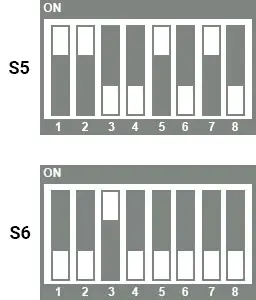
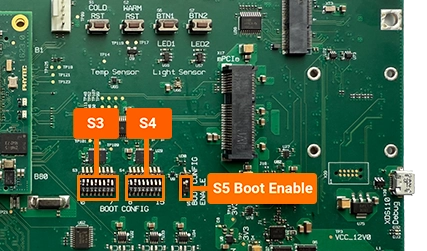
S5 should be ON to override default boot settings.
Note
The USB/DFU boot switch settings are identical to the phyCORE-AM62x. The image above is sourced from the AM62x kit; an AM67x-specific photo will replace it in a future release.
Note
Be mindful of the switch orientation!
Prepare the Development Kit
Plug a USB-C cable from the phyCORE-AM67x development kit into your Ubuntu machine.
Power on the phyCORE-AM67x development kit.
You should see the kit appear on your Ubuntu machine via the USB-C. To verify this, run the following:
sh-host:~$ lsusb | grep 0451:6165

Bus 005 Device 060: ID 0451:6165 Texas Instruments, Inc. AM62x DFU
Loading the Bootloader Binaries
We can now begin our recovery by running snagrecover on our Ubuntu machine in our USB-C terminal.
sh-host:~$ snagrecover -s j722s -f am62x-phyboard-lyra.yaml

Starting recovery of j722s board
Installing firmware tiboot3
Searching for partition id...
Downloading file...
Could not read status after end of manifest phase
Done
Done installing firmware tiboot3
Installing firmware u-boot
Searching for partition id...
Downloading file...
Done
Done installing firmware u-boot
Installing firmware tispl
Searching for partition id...
Downloading file...
Done
Sending detach command...
Done installing firmware tispl
Done recovering j722s board
We should see the following response on our serial terminal:
U-Boot SPL ...
...
SoC:   J722S ...
Model: PHYTEC phyBOARD-Rigel AM67x
...
Hit any key to stop autoboot:  0
=>
We should see U-Boot start up and attempt to boot Linux from the SD-Card. We can stop in U-Boot by pressing any key at this point.