USB
The Universal Serial Bus (USB) can be utilized for many functions on the phyBOARD-Lyra AM62Ax, including external media. The phyBOARD-Lyra AM62Ax provides multiple USB connectors, as detailed in USB Locations. This guide will show you how to use the USB Host capabilities featured on the phyBOARD-Lyra AM62Ax. To learn more information about the phyCORE-AM62Ax USB interface, please see section 7.6 in the Hardware Manual.
The USB0 interface is brought out as a type-C connector (X34). The USB1 interface uses a USB HUB to split the bus to 3x locations.
Type |
Qty |
Header Location |
Speed |
Bus |
|---|---|---|---|---|
USB A Double Stacked |
2 |
X43 |
2.10 |
001 |
Mini PCIe |
1 |
X36 |
2.10 |
001 |
USB C |
1 |
X34 |
2.10 |
003 |
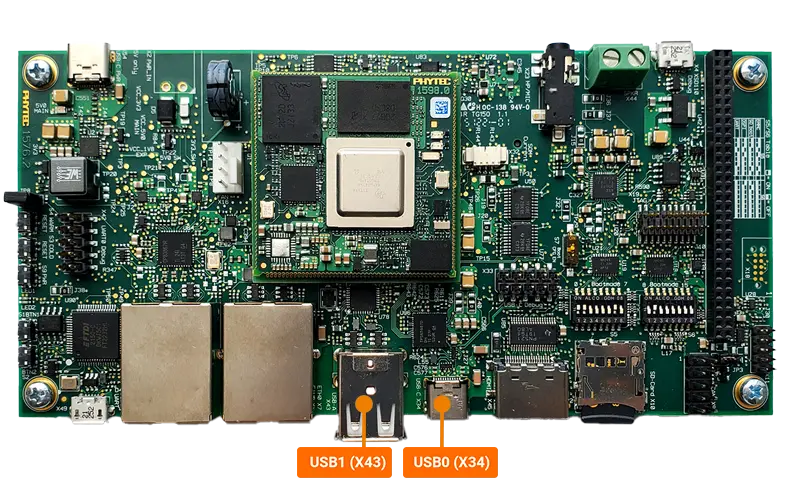
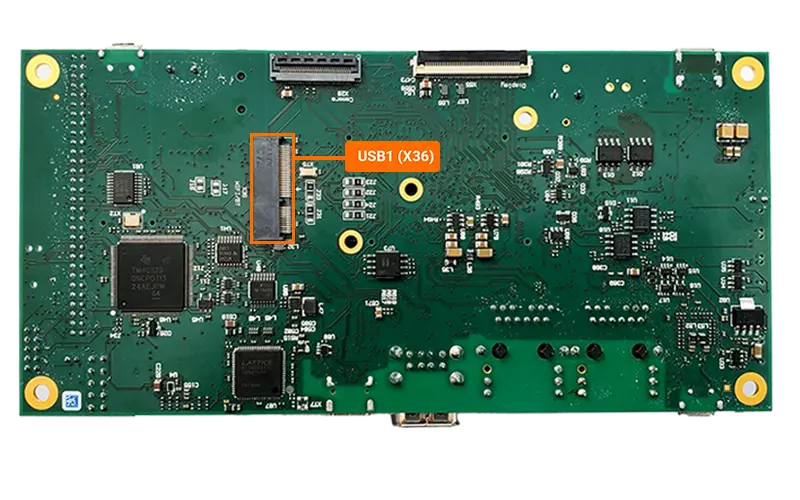
Requirements
USB Storage Device
Verifying USB Interface
Boot into Linux and Insert a USB Storage Device into one of the USB ports.
Upon insertion, kernel output should appear.
[ 2764.219680] usb 1-1.2: new high-speed USB device number 3 using xhci-hcd
[ 2764.325351] usb 1-1.2: New USB device found, idVendor=0781, idProduct=5591, bcdDevice= 1.00
[ 2764.333870] usb 1-1.2: New USB device strings: Mfr=1, Product=2, SerialNumber=3
[ 2764.341297] usb 1-1.2: Product:  SanDisk 3.2Gen1
[ 2764.346029] usb 1-1.2: Manufacturer:  USB
[ 2764.350144] usb 1-1.2: SerialNumber: 0401a83fbd697e437712b826697973aaaf57d1c75e9691ad879dfe7934b8a81bea020000000000000000000037ac13c5ff935d18915581076e2cc649
[ 2764.411781] usb-storage 1-1.2:1.0: USB Mass Storage device detected
[ 2764.418828] scsi host0: usb-storage 1-1.2:1.0
[ 2764.424110] usbcore: registered new interface driver usb-storage
[ 2765.448829] scsi 0:0:0:0: Direct-Access      USB      SanDisk 3.2Gen1 1.00 PQ: 0 ANSI: 6
[ 2765.463168] sd 0:0:0:0: [sda] 30031872 512-byte logical blocks: (15.4 GB/14.3 GiB)
[ 2765.481193] sd 0:0:0:0: [sda] Write Protect is off
[ 2765.486641] sd 0:0:0:0: [sda] Write cache: disabled, read cache: enabled, doesn't support DPO or FUA
[ 2765.504741] sd 0:0:0:0: [sda] Attached SCSI removable disk
Verify the available USB devices.
sh-phyboard-lyra-am62axx-2:~# lsusb
Bus 001 Device 003: ID 0781:5591  USB  SanDisk 3.2Gen1
Bus 001 Device 002: ID 0424:2514
Bus 001 Device 001: ID 1d6b:0002 Linux 6.1.33-bsp-yocto-ampliphy-am62x-pd23.2-rc1 xhci-hcd xHCI Host Controller
To list more information about the USB device and buses on the development kit use the following command.
This command will output a good chunk of information. This guide will only show a snippet of the expected output for the USB drive that was just connected.
sh-phyboard-lyra-am62axx-2:~# lsusb -v
The speed of the USB device can be determined with either the
lsusb -vfrom above or by reading the device’s “speed”
sh-phyboard-lyra-am62axx-2:~# cat /sys/bus/usb/devices/1-1.2/speed
480
Note
USB2.0 has transmission speeds up to 480Mbit/s, also known as “high speed”.
Using a USB Storage Device
Find the Device Name
The kernel output shown when the drive was inserted names it (
sdain the example above). You can also list the block devices:sh-phyboard-lyra-am62axx-2:~# ls /dev/sd* /dev/sda /dev/sda1
Note
sdais the whole drive andsda1is the first partition on it. A drive formatted without a partition table only showssda.Create a mount point for the drive:
sh-phyboard-lyra-am62axx-2:~# mkdir -p /mnt/usb
Continue with the section that matches your drive: Accessing Files on a USB Drive with Data to work with the files already on it, or Formatting a New USB Drive to start with an empty drive.
Accessing Files on a USB Drive with Data
Mount the partition that holds the data. Use
/dev/sdainstead if the drive has no partition table:sh-phyboard-lyra-am62axx-2:~# mount /dev/sda1 /mnt/usb
List the files on the drive:
sh-phyboard-lyra-am62axx-2:~# ls /mnt/usb
Copy a file to the drive:
sh-phyboard-lyra-am62axx-2:~# echo "Hello from the phyBOARD-Lyra AM62Ax" > hello.txt
sh-phyboard-lyra-am62axx-2:~# cp hello.txt /mnt/usb/
Copy a file from the drive back to the board:
sh-phyboard-lyra-am62axx-2:~# cp /mnt/usb/hello.txt ~/hello-from-usb.txt
sh-phyboard-lyra-am62axx-2:~# cat ~/hello-from-usb.txt
Hello from the phyBOARD-Lyra AM62Ax
Formatting a New USB Drive
Warning
Formatting erases all data on the drive. Make sure you selected the right device name, and that the drive is not mounted.
Format the whole drive with a FAT file system:
sh-phyboard-lyra-am62axx-2:~# mkfs.vfat /dev/sda
Mount the drive:
sh-phyboard-lyra-am62axx-2:~# mount /dev/sda /mnt/usb
The drive is now empty and ready to use. To check that data is written to and read back from the drive correctly, continue with Verifying Data Transfer.
Verifying Data Transfer
This test writes a file with random content to the drive and reads it back. Unmounting and mounting the drive in between ensures the file is read from the drive and not from memory.
Generate a random 10 MB file and copy it to the drive. Use the device name you mounted above (
/dev/sdaor/dev/sda1):sh-phyboard-lyra-am62axx-2:~# dd if=/dev/urandom of=test.file count=10 bs=1M 10+0 records in 10+0 records out 10485760 bytes (10 MB, 10 MiB) copied, 0.161874 s, 64.8 MB/s sh-phyboard-lyra-am62axx-2:~# cp test.file /mnt/usb/ sh-phyboard-lyra-am62axx-2:~# umount /mnt/usb sh-phyboard-lyra-am62axx-2:~# mount /dev/sda /mnt/usb
Copy the file back from the drive and compare the checksums:
sh-phyboard-lyra-am62axx-2:~# cp /mnt/usb/test.file readback-usb.file
sh-phyboard-lyra-am62axx-2:~# md5sum test.file readback-usb.file
d3aa3ee1db746d6f7fb66c9b42f4ea6b  test.file
d3aa3ee1db746d6f7fb66c9b42f4ea6b  readback-usb.file
Both checksums must match.
Unmounting the Drive
Warning
Make sure the drive is unmounted prior to physically disconnecting the device.
Failure to do so may result in loss of data and corruption of files. umount writes all pending data to the drive before it returns.
sh-phyboard-lyra-am62axx-2:~# umount /mnt/usb